> ## Documentation Index
> Fetch the complete documentation index at: https://developer.dittowords.com/llms.txt
> Use this file to discover all available pages before exploring further.
# GitHub PR Review Bot
> Automatically review pull requests for style guide violations and text re-use suggestions
## Overview
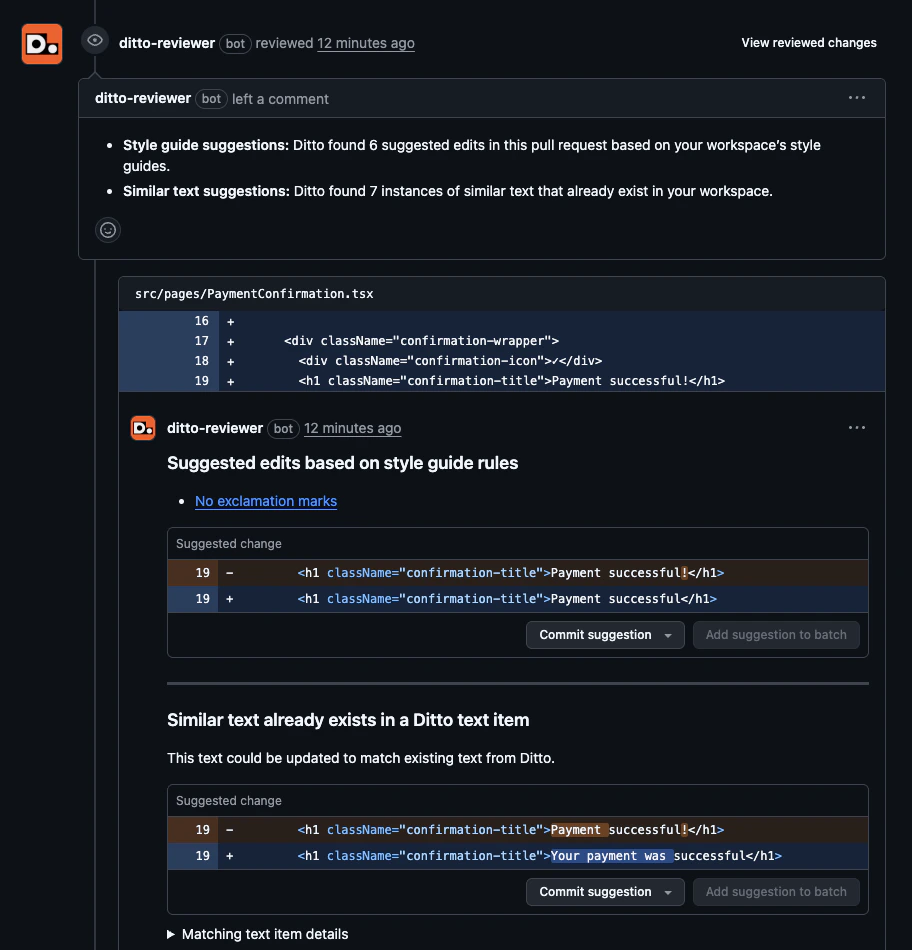
The Ditto GitHub PR Review Bot automatically reviews pull request text and leaves inline suggestions directly in GitHub. When triggered, the bot checks the diff for:
* **Style guide violations:** text that doesn't match your active Ditto style guide rules
* **Text re-use opportunities:** text that already exists in Ditto and could be reused instead of introducing new text
 ## Prerequisites
Before setting up the integration, make sure you have:
* **Style guides enabled** in your Ditto workspace with at least one active rule. The bot uses these to evaluate PR text, so without them there's nothing to check against.
* **GitHub admin access** for the account or organization you want to install the app on. If you're a GitHub org member (not a GitHub admin), you can still request installation, but a GitHub admin with Ditto access will need to approve it before the bot activates.
## Installation
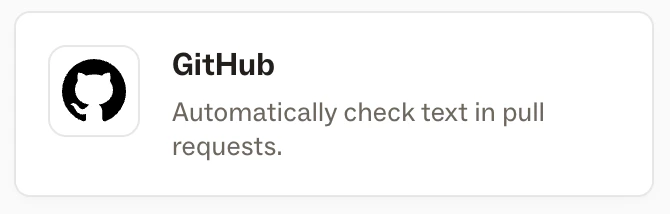
In your Ditto workspace, go to **Integrations** and click the **GitHub** card.
## Prerequisites
Before setting up the integration, make sure you have:
* **Style guides enabled** in your Ditto workspace with at least one active rule. The bot uses these to evaluate PR text, so without them there's nothing to check against.
* **GitHub admin access** for the account or organization you want to install the app on. If you're a GitHub org member (not a GitHub admin), you can still request installation, but a GitHub admin with Ditto access will need to approve it before the bot activates.
## Installation
In your Ditto workspace, go to **Integrations** and click the **GitHub** card.
 Click **Install Ditto's GitHub App**. You'll be redirected to GitHub to complete the installation. For more details on this flow, see [GitHub's documentation on installing GitHub Apps](https://docs.github.com/en/apps/using-github-apps/installing-a-github-app-from-a-third-party).
Choose the account or organization where you want to install the bot:
* **GitHub org member:** submitting will send an approval request to your GitHub org's admins. You'll finish linking the app to Ditto in the next step, once a GitHub admin approves the request.
* **GitHub org admin:** you can install directly.
Click **Install Ditto's GitHub App**. You'll be redirected to GitHub to complete the installation. For more details on this flow, see [GitHub's documentation on installing GitHub Apps](https://docs.github.com/en/apps/using-github-apps/installing-a-github-app-from-a-third-party).
Choose the account or organization where you want to install the bot:
* **GitHub org member:** submitting will send an approval request to your GitHub org's admins. You'll finish linking the app to Ditto in the next step, once a GitHub admin approves the request.
* **GitHub org admin:** you can install directly.
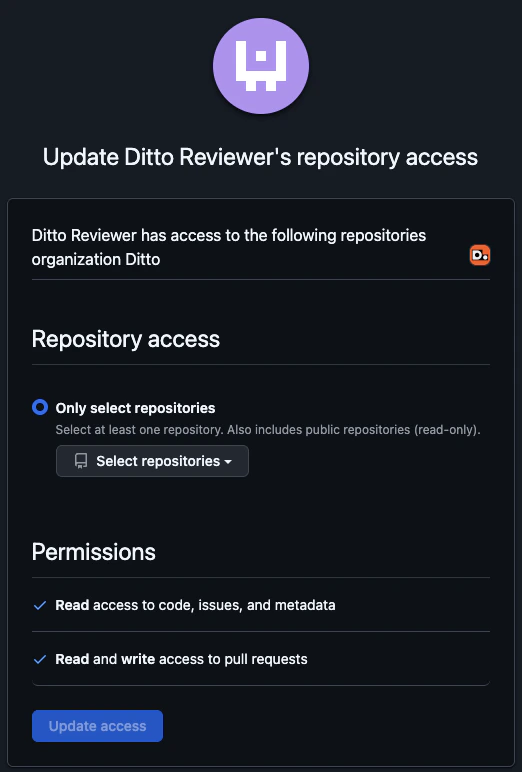 Select which repositories you want the bot to have access to, then confirm the following permissions:
* Read access to **code** and **metadata**
* Read and write access to **issues** and **pull requests**
The bot will **never write or modify code**; it only comments on pull requests.
Click **Install** (or **Request**, for GitHub org members) to confirm.
After installing, you'll be redirected back to Ditto.
* **GitHub org member:** the GitHub integration will show as **Pending** while the request awaits GitHub admin approval. Once a GitHub admin approves the install, comment **`/ditto connect`** on any pull request in a covered repository to finish linking the app to your Ditto workspace.
* **GitHub org admin:** the GitHub integration will show as **Connected** and the bot is ready to use.
Select which repositories you want the bot to have access to, then confirm the following permissions:
* Read access to **code** and **metadata**
* Read and write access to **issues** and **pull requests**
The bot will **never write or modify code**; it only comments on pull requests.
Click **Install** (or **Request**, for GitHub org members) to confirm.
After installing, you'll be redirected back to Ditto.
* **GitHub org member:** the GitHub integration will show as **Pending** while the request awaits GitHub admin approval. Once a GitHub admin approves the install, comment **`/ditto connect`** on any pull request in a covered repository to finish linking the app to your Ditto workspace.
* **GitHub org admin:** the GitHub integration will show as **Connected** and the bot is ready to use.
 ## Configuration
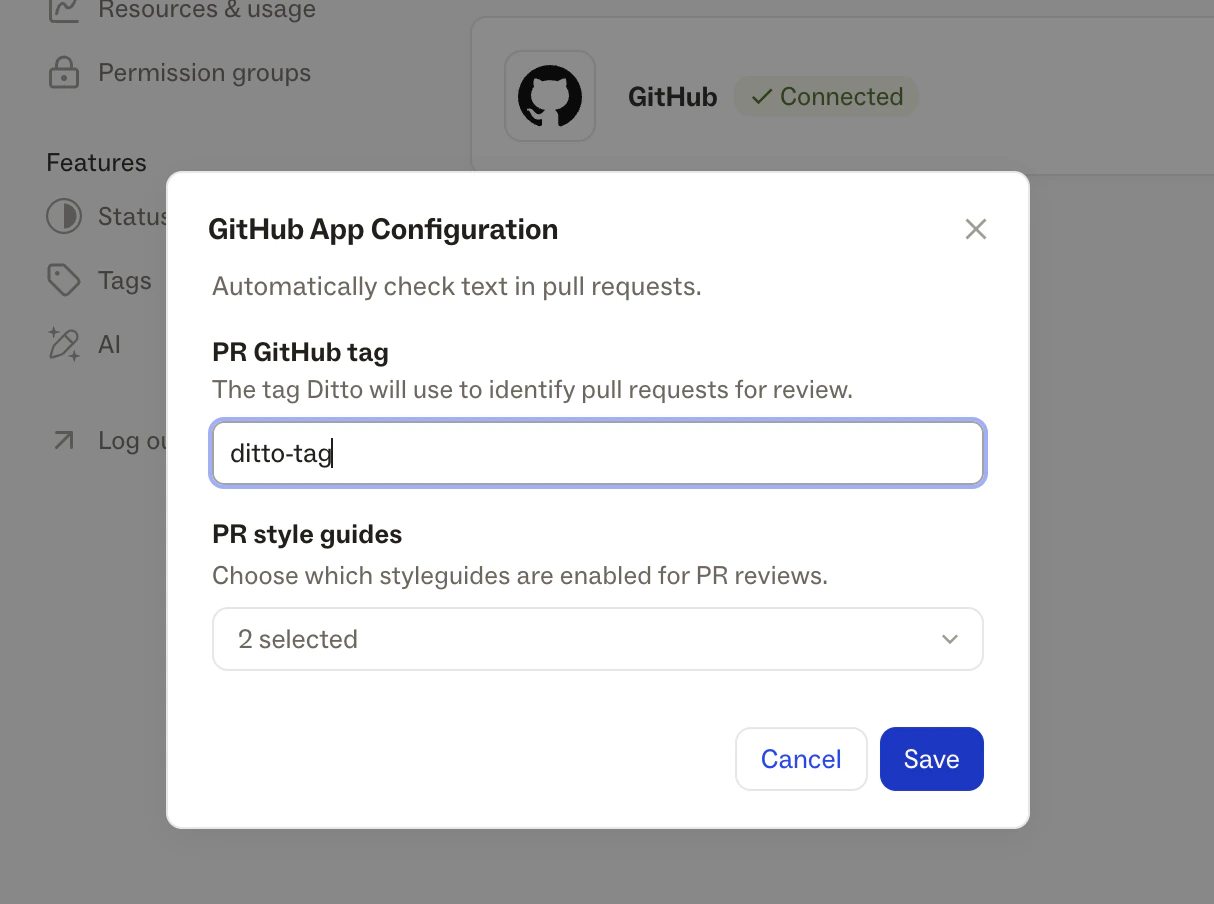
Once connected, you can configure the bot's behavior under **Settings > Connections** in Ditto.
## Configuration
Once connected, you can configure the bot's behavior under **Settings > Connections** in Ditto.
 | Setting | Description |
| ----------------- | -------------------------------------------------------------------------------------------------------------------- |
| **PR Review Tag** | The GitHub label that triggers a review. Defaults to `ditto`. Change this to any label name that fits your workflow. |
| **Style Guides** | Select which style guides the bot should check against. Only the selected guides will be used during review. |
## Using the Bot
Once installed and configured, a review can be triggered in two ways:
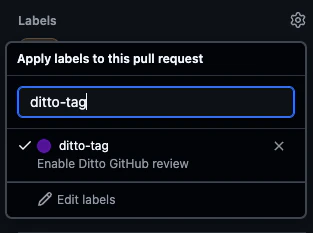
* **Label:** apply your configured label to the PR
* **Comment:** post `/ditto review` as a comment on the PR
Create or open a pull request in a repository where the bot is installed.
Either apply your configured label to the PR, or post a **`/ditto review`** comment. Both will kick off a review.
| Setting | Description |
| ----------------- | -------------------------------------------------------------------------------------------------------------------- |
| **PR Review Tag** | The GitHub label that triggers a review. Defaults to `ditto`. Change this to any label name that fits your workflow. |
| **Style Guides** | Select which style guides the bot should check against. Only the selected guides will be used during review. |
## Using the Bot
Once installed and configured, a review can be triggered in two ways:
* **Label:** apply your configured label to the PR
* **Comment:** post `/ditto review` as a comment on the PR
Create or open a pull request in a repository where the bot is installed.
Either apply your configured label to the PR, or post a **`/ditto review`** comment. Both will kick off a review.
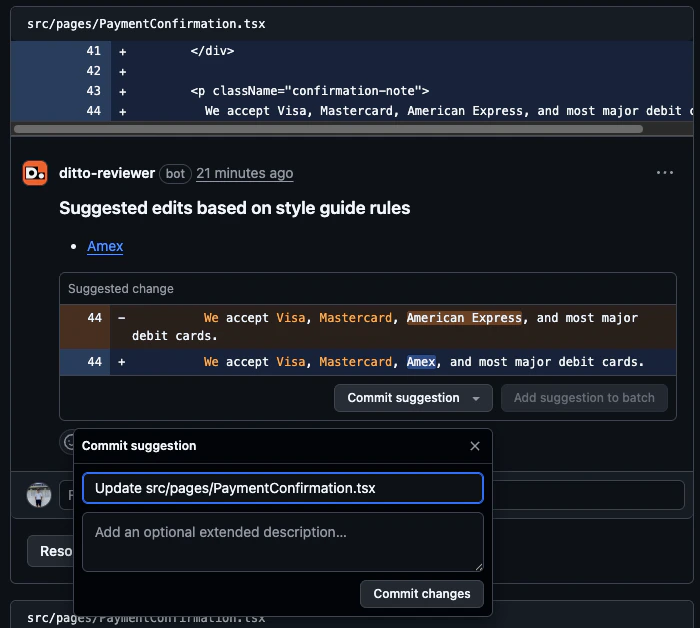
 In a few moments, the Ditto bot will comment on the PR with a summary of its findings, including any style guide violations and existing text in Ditto that could be reused.
If nothing is flagged, it will let you know the text looks good.
You can commit suggestions directly from GitHub's PR interface. The changes will be associated with the user that accepts the suggestions.
If the PR has the triggering label applied, the bot will automatically re-review on each new commit and won't re-flag suggestions that have already been addressed.
In a few moments, the Ditto bot will comment on the PR with a summary of its findings, including any style guide violations and existing text in Ditto that could be reused.
If nothing is flagged, it will let you know the text looks good.
You can commit suggestions directly from GitHub's PR interface. The changes will be associated with the user that accepts the suggestions.
If the PR has the triggering label applied, the bot will automatically re-review on each new commit and won't re-flag suggestions that have already been addressed.