> ## Documentation Index
> Fetch the complete documentation index at: https://developer.dittowords.com/llms.txt
> Use this file to discover all available pages before exploring further.
# Key Concepts
> Concepts and features in Ditto that can be leveraged by developers
## Text Items & Library Components
[Text items](https://help.dittowords.com/en/articles/11502480-text-items-and-linking) in Ditto are strings maintained in your Ditto projects that can be linked to one or more instances of that text in your design files. Editing a text item will also edit all of its linked instances.
Each workspace also has a centralized library of [components](https://help.dittowords.com/en/articles/11502584-component-library). These function similarly to text items in projects, but allow you to reuse the same text across multiple projects by attaching a library component to one or more project text items. Editing the component or any of its attached instances will update all of its instances.
## Developer IDs
Developer IDs in Ditto are unique, (typically) human-readable identifiers for various types of Ditto data, such as projects, text items, library components, component folders, variables, and variants. Developer IDs serve as the unique key for referencing each piece of Ditto data in development, as well as to retrieve desired data from the API and CLI.
Developer IDs are generated automatically when an item is created, based on that item’s data. Most items, such as projects and components, will have Developer IDs created based on their initial name, while text items' will be generated based on their original text content.
To preserve stable references between Ditto and your application, once a Developer ID value has been generated, Ditto will **not** automatically update it when the related data changes. For instance, editing the content of a text item will not affect the text item's Developer ID. However, you may directly edit the value of a Developer ID from within Ditto at any time.
> **Important:** If you change the value of a Developer ID in Ditto, you will also need to update any references to that Developer ID in your own application. To avoid breaking changes, we recommend making any such edits before you begin using a given item in your code.
**Uniqueness**
In order to function as a suitable key for fetching Ditto data, Developer IDs for a given entity type must be unique within your workspace. No two projects or pieces of text may share a Developer ID (however you may have a project and a text item with the same value). Text items and library components belong to the same pool of Developer ID values; you may not have a library component and an unrelated text item with the same Developer ID, nor can similar text items in different projects share a value. With one exception: library components and their text item instances will all share the same Developer ID.
**Example**: I have a library component with Developer ID, “hello”. I create two text items in two different projects with the text “hello”. These text items will be assigned “hello-1” and “hello-2”. If I then attach both text items to the library component, all three text entities will now share the Developer ID, “hello”. Since text content and metadata is synced between these three text entities, they can safely share the same Developer ID — any data fetched by that ID should be identical across all instances.
**Configuration**
Developer IDs are auto-generated and validated based on a particular spec, referred to as the Developer ID Configuration. The config, which applies to all Developer IDs across the entire workspace, can be viewed and edited from the [Developers page](https://app.dittowords.com/developers/configure-dev-ids).
Users can control the following aspects of a Developer ID:
* Allowed characters - The set of characters that may be present in a Developer ID string
* Character replacement - An ordered list of rules for replacing substrings from the source text during auto-generation
* Casing adjustment - Optionally transform the case of the source text during auto-generation. Supported options: lowercase, UPPERCASE, camelCase, PascalCase.
* Maximum length - The maximum number of characters that a Developer ID may contain.
* **Note:** During the deduplication phase of auto-generation, the system may add a unique suffix to the generated value. This step occurs *after* truncating to the max length, which means it is possible that system generated strings may be a few characters above the limit. **If you have a hard limit in your system, we recommend setting your config max length to 3+ characters below that limit to account for deduplication suffixes.** Manual edits over the limit, however, will not be accepted.
For more details, visit the [Help Docs](https://help.dittowords.com/en/articles/14529160-developer-id-configuration).
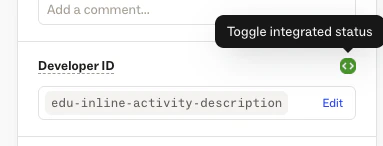
**Marking Developer IDs as Integrated**
Users can mark text items and library components as "integrated" to denote that these items (more specifically their Developer IDs) are in use in development integrations. Marking an item as "integrated" should indicate to other workspace members that this Developer ID value is in use in code, that changing the Developer ID value could represent a breaking change and changes to the text content may result in changing copy that appears in production.
Users can also filter by this property in each API endpoint that fetches text items or components as well as in the CLI config. This is an easy way to limit which values are pulled into your codebase in order to simplify your developer integrations and make it more clear which text is already in use and what is safe to edit.
Additionally, all webhook events will include an `integrated: boolean` property representing whether or not the updated item is marked as integrated. This can be used as a filter on whether to respond to a given webhook event upon receipt.
 **Project Developer IDs**
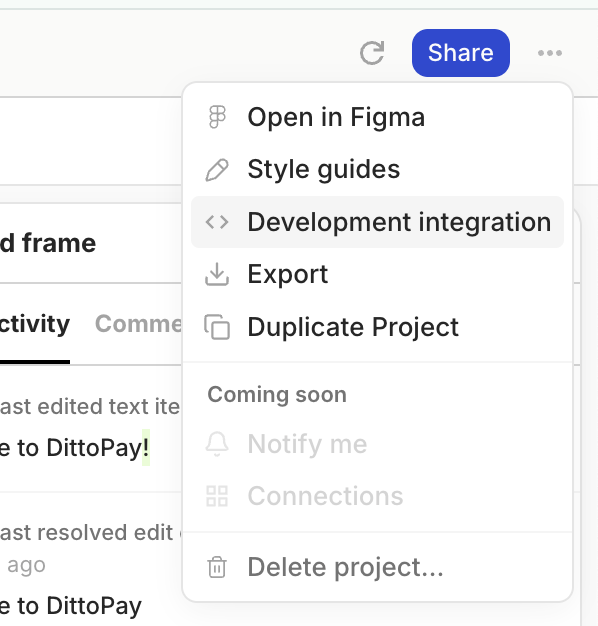
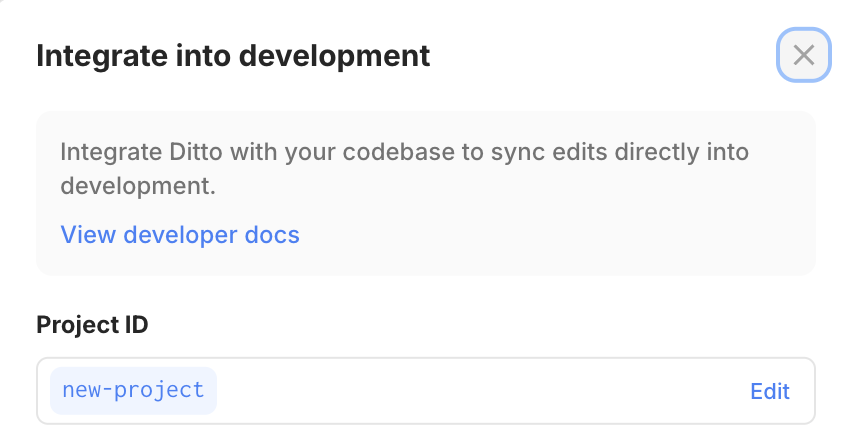
To view and edit a project’s Developer ID, choose `Development integration` in the main menu found in the top right of a project in the web app.
**Project Developer IDs**
To view and edit a project’s Developer ID, choose `Development integration` in the main menu found in the top right of a project in the web app.
 **Text item and library component Developer IDs:**
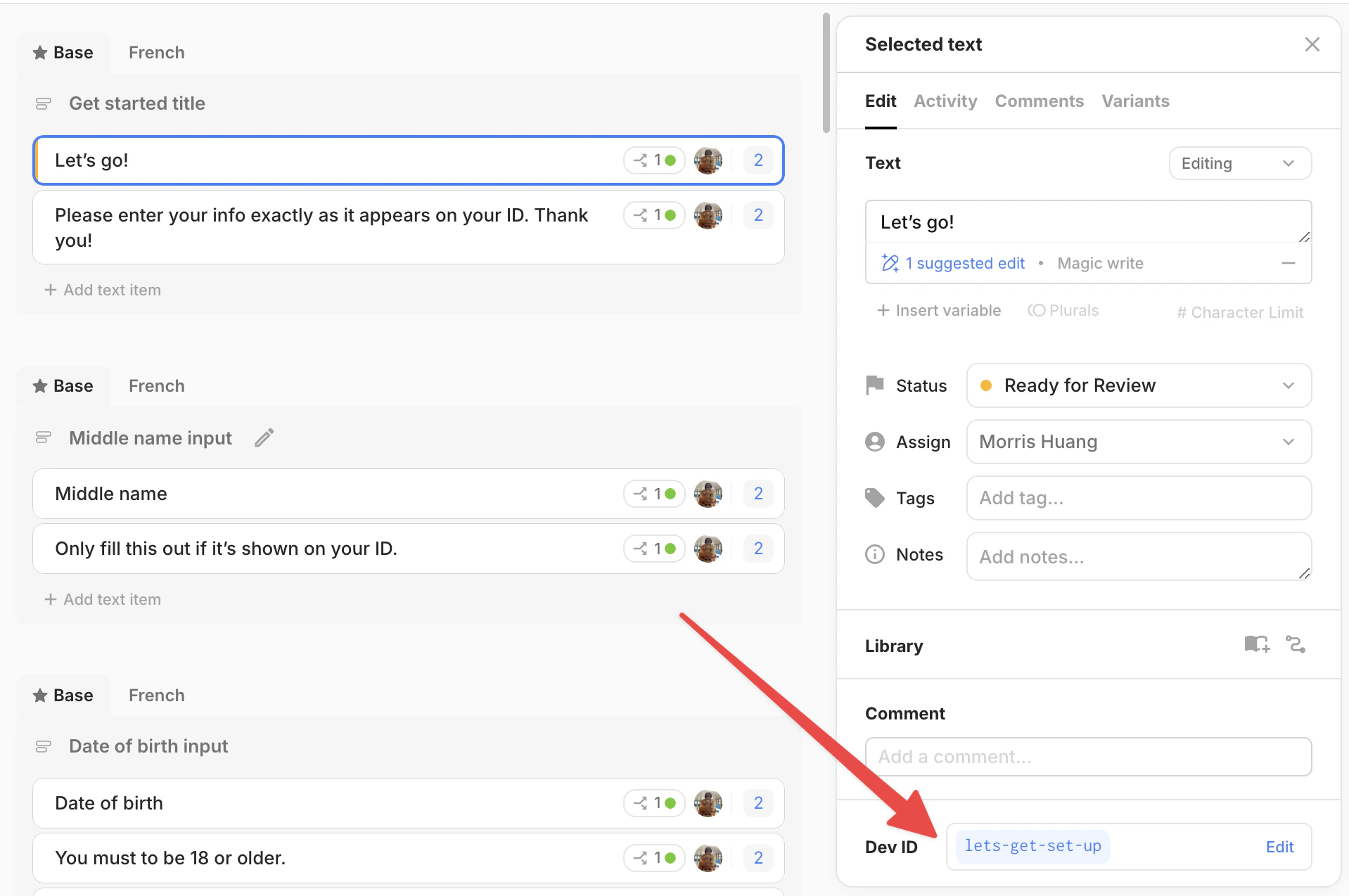
1. Select an individual text item or library component
2. See the Developer ID section in the details panel
**Text item and library component Developer IDs:**
1. Select an individual text item or library component
2. See the Developer ID section in the details panel
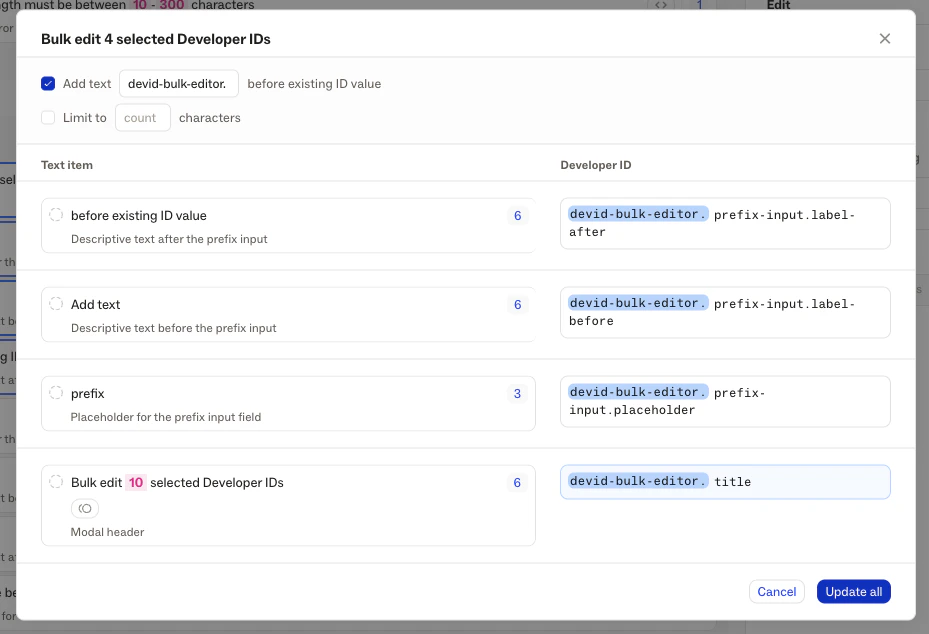
 You can also select multiple text items or components to bring up the **Bulk Editor**. Here, you can view and edit a selection of items all at once and perform certain bulk operations such as adding the same prefix to all selected items. Click [here](https://help.dittowords.com/en/articles/14792979-developer-id-bulk-editor) for more details.
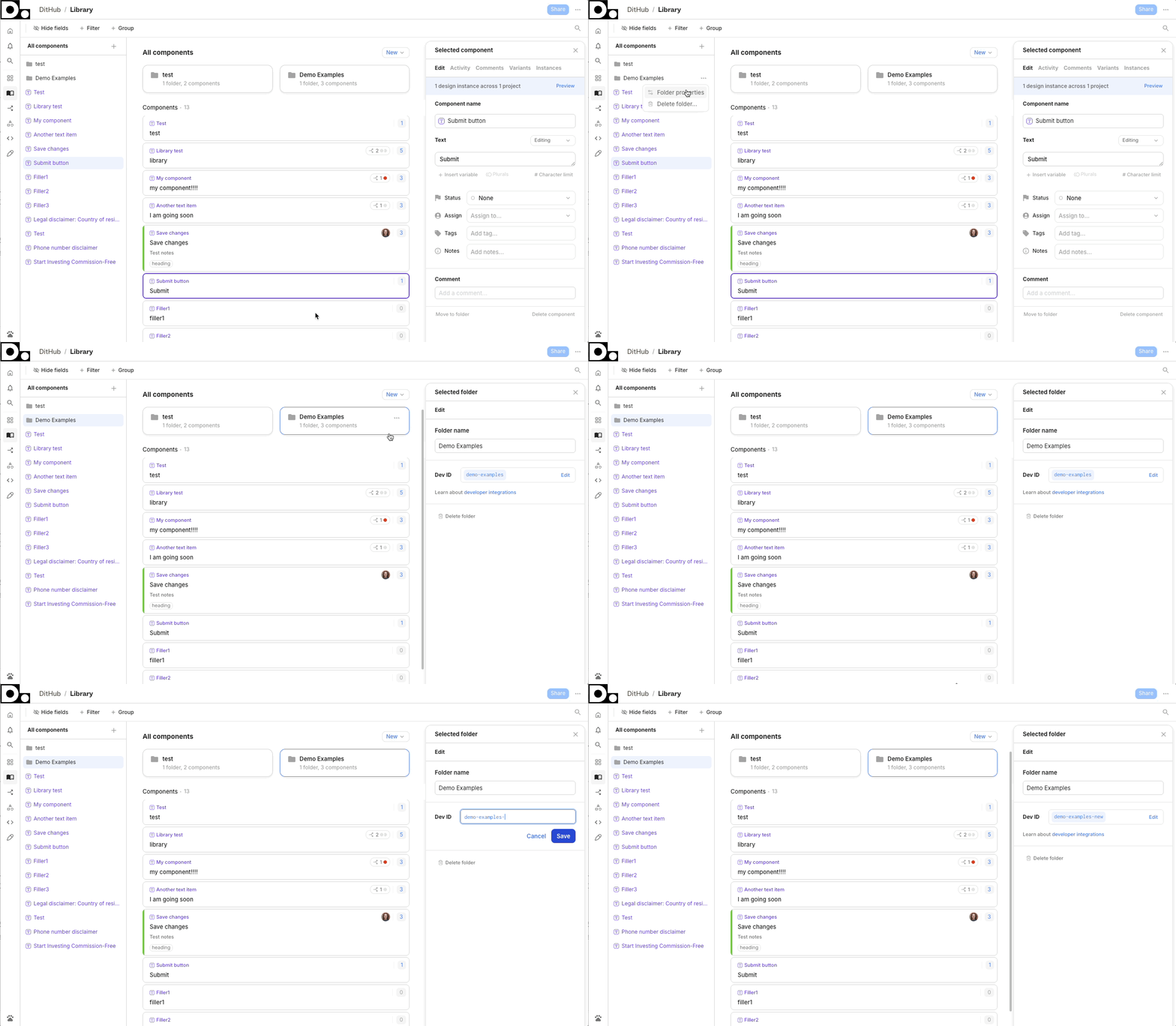
 **Library Folder Developer IDs:**
1. Visit the parent of a library folder (the folder that contains the one you want to view)
2. Choose “**Folder properties…**” from the dropdown menu that appears on the folder in the left sidebar or the main content area
3. Edit the **Developer ID** in the details panel
**Library Folder Developer IDs:**
1. Visit the parent of a library folder (the folder that contains the one you want to view)
2. Choose “**Folder properties…**” from the dropdown menu that appears on the folder in the left sidebar or the main content area
3. Edit the **Developer ID** in the details panel
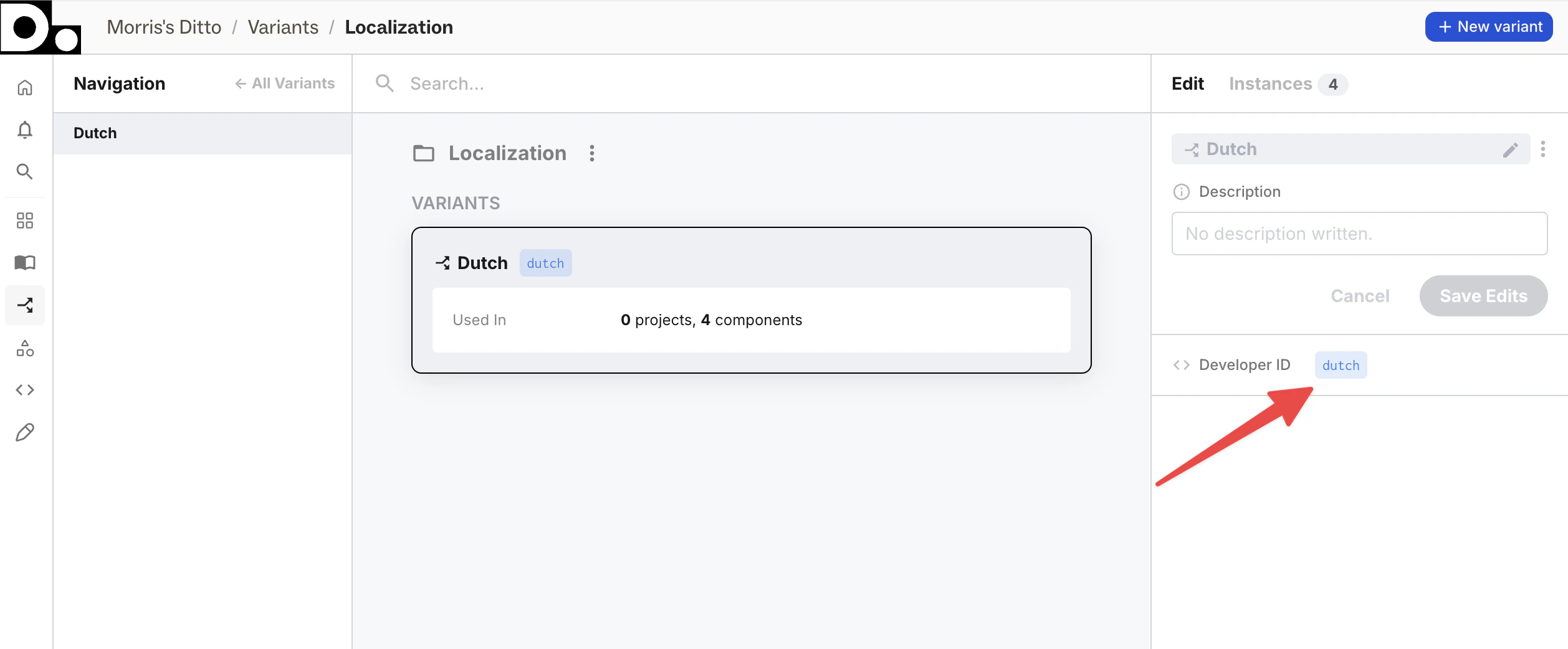
 **Variant Developer ID:**
1. Go to the [variant library](https://app.dittowords.com/variants) and select a variant
2. Edit the Developer ID in the details panel
**Variant Developer ID:**
1. Go to the [variant library](https://app.dittowords.com/variants) and select a variant
2. Edit the Developer ID in the details panel
 ## Translation with Variants
Ditto generates localization-ready files using [variants](https://help.dittowords.com/en/articles/11502612-variants), with each variant corresponding to a language/locale. In these files, a single text item (string) can contain multiple variants, making it easy to display different language files to users. To handle localized strings, you can choose to either:
* Localize in-house by providing translations in the Ditto app
* Integrate Ditto with a translation management system (either using one of our existing [**integrations**](https://app.dittowords.com/integrations) or via our API)
To learn more about localizing with Ditto, check out [this guide](https://help.dittowords.com/en/articles/11670953-how-to-manage-translations-and-localization).
## Variable Interpolation
Variable interpolation and dynamic values are handled by [variables](https://help.dittowords.com/en/articles/11657688-variables) in Ditto. When fetched by the API/CLI or in manual exports, Ditto will handle variable formatting specific to each string file format.
## Pluralization
Ditto supports the ability to define multiple **plural forms** to a given piece of text, allowing your application to render different copy based on a particular count. For instance, when building a search page, you may want to render slightly different copy based on how many results were returned: "10 results" or "1 result" or "No results". Ditto supports creating all three of these copy options in the same text item with the use of Plurals. For this example, you would create three "plural forms": "zero", "one" and "other" with the copy that corresponds to the result count.
The Ditto API will generate a separate response object for the "base" plural (pluralForm: null) and each defined plural form. In the example above, this would result in a total of four text items. Following i18next formatting, the Developer ID value for each plural form will be a concatenation of the text item's Developer ID and the plural form, i.e. `dev_id_one`. When using i18next in your codebase, the raw data will include each of the plurals separately, but you simply access the text by providing the main Developer ID value (without a plural suffix) and provide a `count` variable to the i18n interpolation function, and i18n will automatically render the right plural string based on the provided count.
Plurals are fully supported through the Ditto ecosystem: plurals may contain variables, and plurals can be added to Variants.
To learn more about using plurals in Ditto, check out [this guide](https://help.dittowords.com/en/articles/13460485-plurals).
## Translation with Variants
Ditto generates localization-ready files using [variants](https://help.dittowords.com/en/articles/11502612-variants), with each variant corresponding to a language/locale. In these files, a single text item (string) can contain multiple variants, making it easy to display different language files to users. To handle localized strings, you can choose to either:
* Localize in-house by providing translations in the Ditto app
* Integrate Ditto with a translation management system (either using one of our existing [**integrations**](https://app.dittowords.com/integrations) or via our API)
To learn more about localizing with Ditto, check out [this guide](https://help.dittowords.com/en/articles/11670953-how-to-manage-translations-and-localization).
## Variable Interpolation
Variable interpolation and dynamic values are handled by [variables](https://help.dittowords.com/en/articles/11657688-variables) in Ditto. When fetched by the API/CLI or in manual exports, Ditto will handle variable formatting specific to each string file format.
## Pluralization
Ditto supports the ability to define multiple **plural forms** to a given piece of text, allowing your application to render different copy based on a particular count. For instance, when building a search page, you may want to render slightly different copy based on how many results were returned: "10 results" or "1 result" or "No results". Ditto supports creating all three of these copy options in the same text item with the use of Plurals. For this example, you would create three "plural forms": "zero", "one" and "other" with the copy that corresponds to the result count.
The Ditto API will generate a separate response object for the "base" plural (pluralForm: null) and each defined plural form. In the example above, this would result in a total of four text items. Following i18next formatting, the Developer ID value for each plural form will be a concatenation of the text item's Developer ID and the plural form, i.e. `dev_id_one`. When using i18next in your codebase, the raw data will include each of the plurals separately, but you simply access the text by providing the main Developer ID value (without a plural suffix) and provide a `count` variable to the i18n interpolation function, and i18n will automatically render the right plural string based on the provided count.
Plurals are fully supported through the Ditto ecosystem: plurals may contain variables, and plurals can be added to Variants.
To learn more about using plurals in Ditto, check out [this guide](https://help.dittowords.com/en/articles/13460485-plurals).