
Choose your setup
Either path ends with the same tools available to the agent.
Install the Ditto plugin
The plugin is the agent setup package. It bundles the MCP server configuration, session instructions that make the agent check Ditto before writing copy, and skills such as/ditto-review and /ditto-audit; the full list is on Agent instructions.
Claude Code
Run these in a terminal (an agent can run them too; they change settings rather than starting a session):- Restart any running Claude Code sessions and approve the
dittoMCP server when prompted. - Run
/mcp, select the Ditto server (listed as ditto, or plugin:ditto:ditto when it comes from the plugin), and choose Authenticate. A browser tab opens for you to log in to Ditto and approve access. - Back in Claude Code, the Ditto tools appear in your tool list.
Claude Desktop
Claude Desktop has a plugin manager instead of a/plugin command.
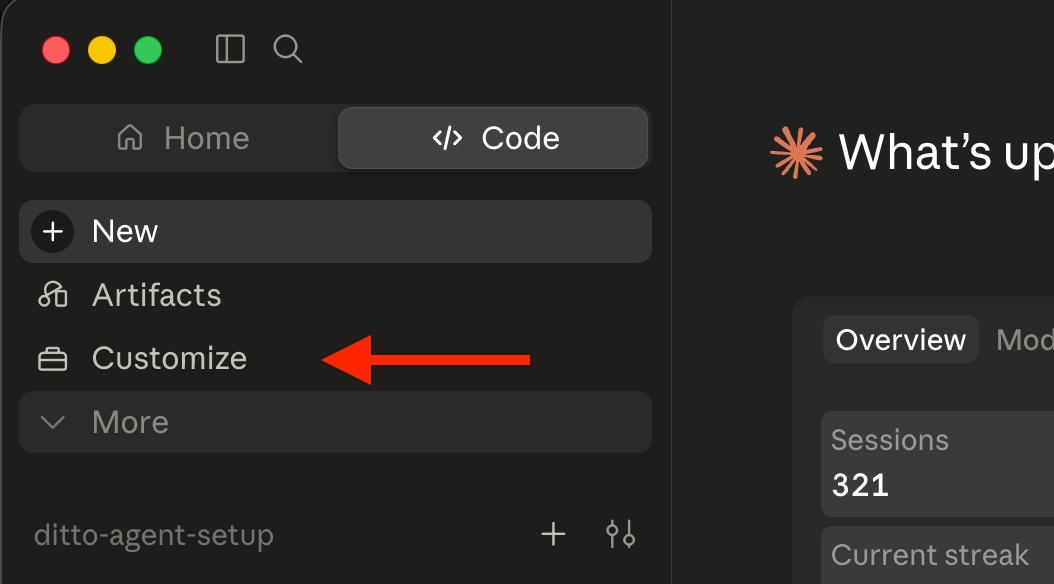
- Click Customize.
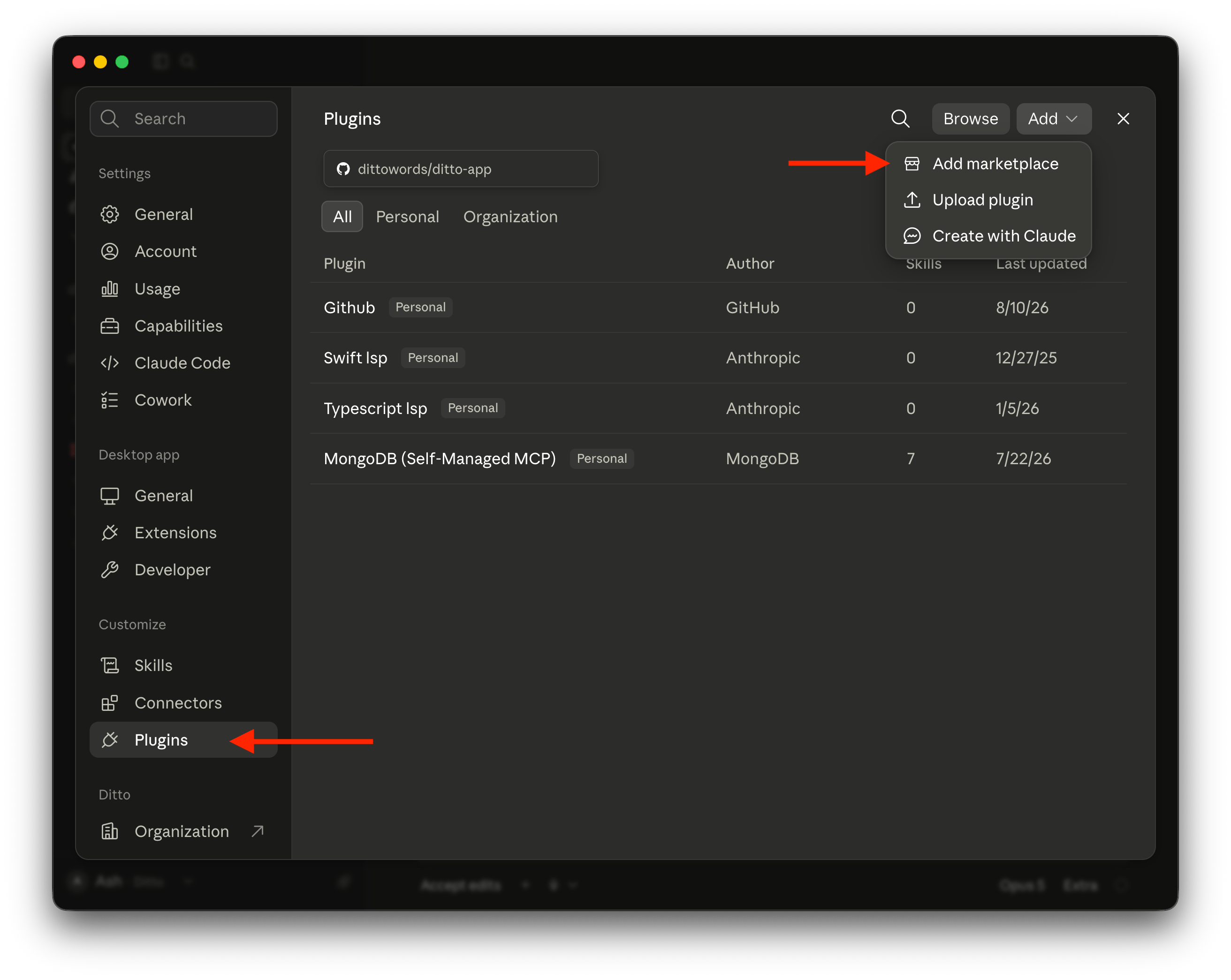
- Open the Plugins tab, click Add, then Add marketplace.
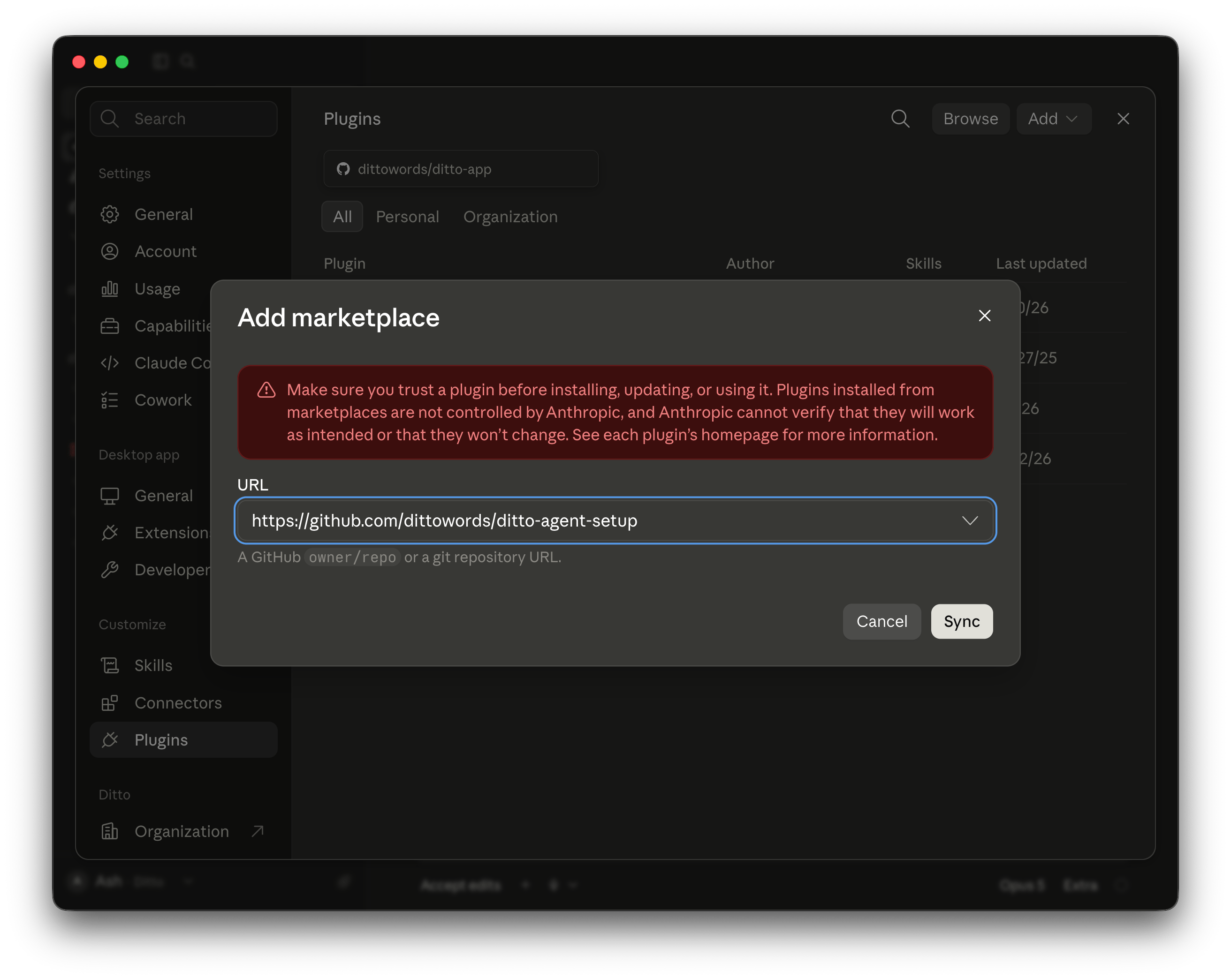
- Paste
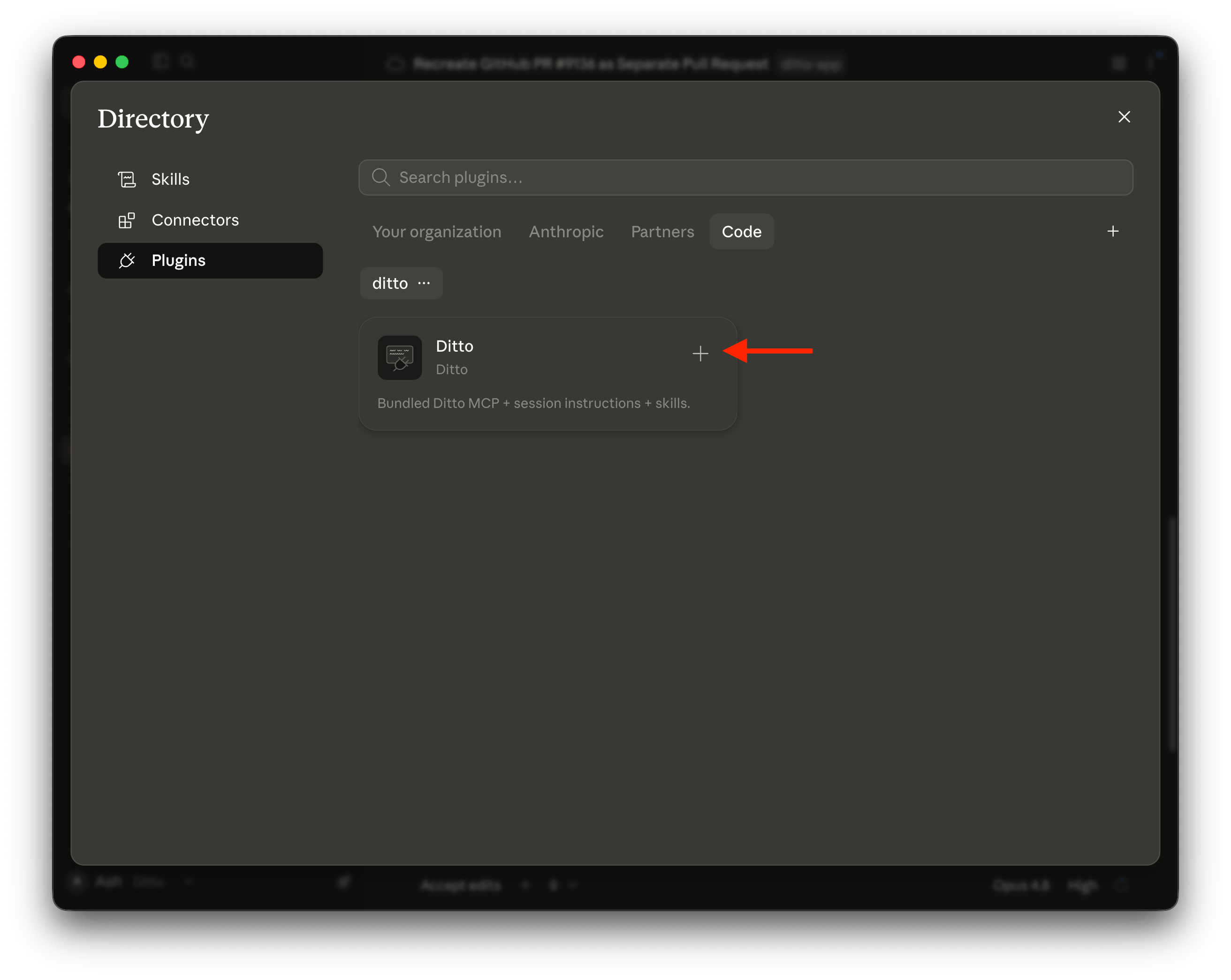
https://github.com/dittowords/ditto-agent-setupand confirm. - Find Ditto in the marketplace and click Install.
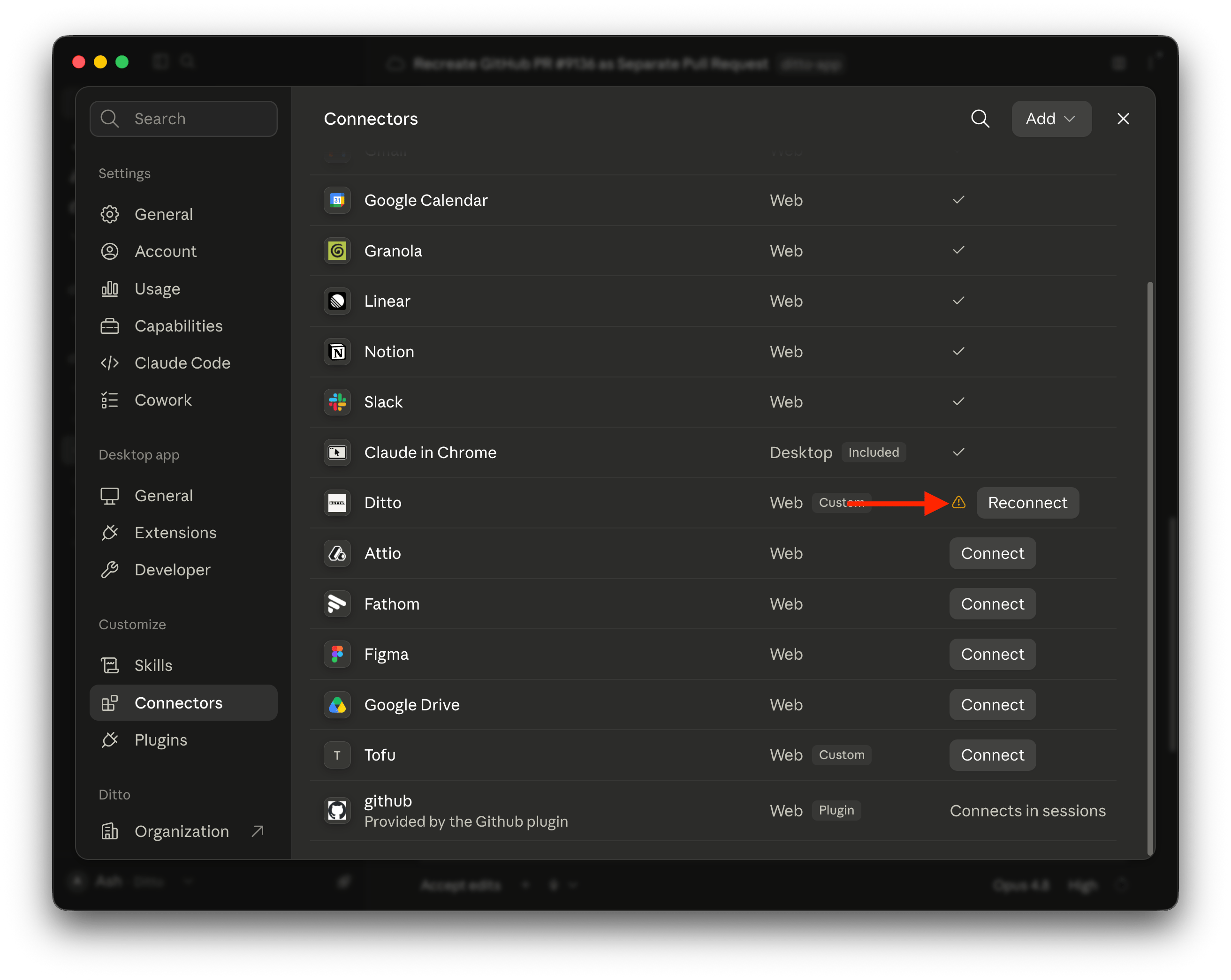
- Go to Connectors, find Ditto, and click Connect (or Reconnect). A browser tab opens for you to log in to Ditto and approve access.
Screenshots of the Claude Desktop steps
Screenshots of the Claude Desktop steps
Cursor
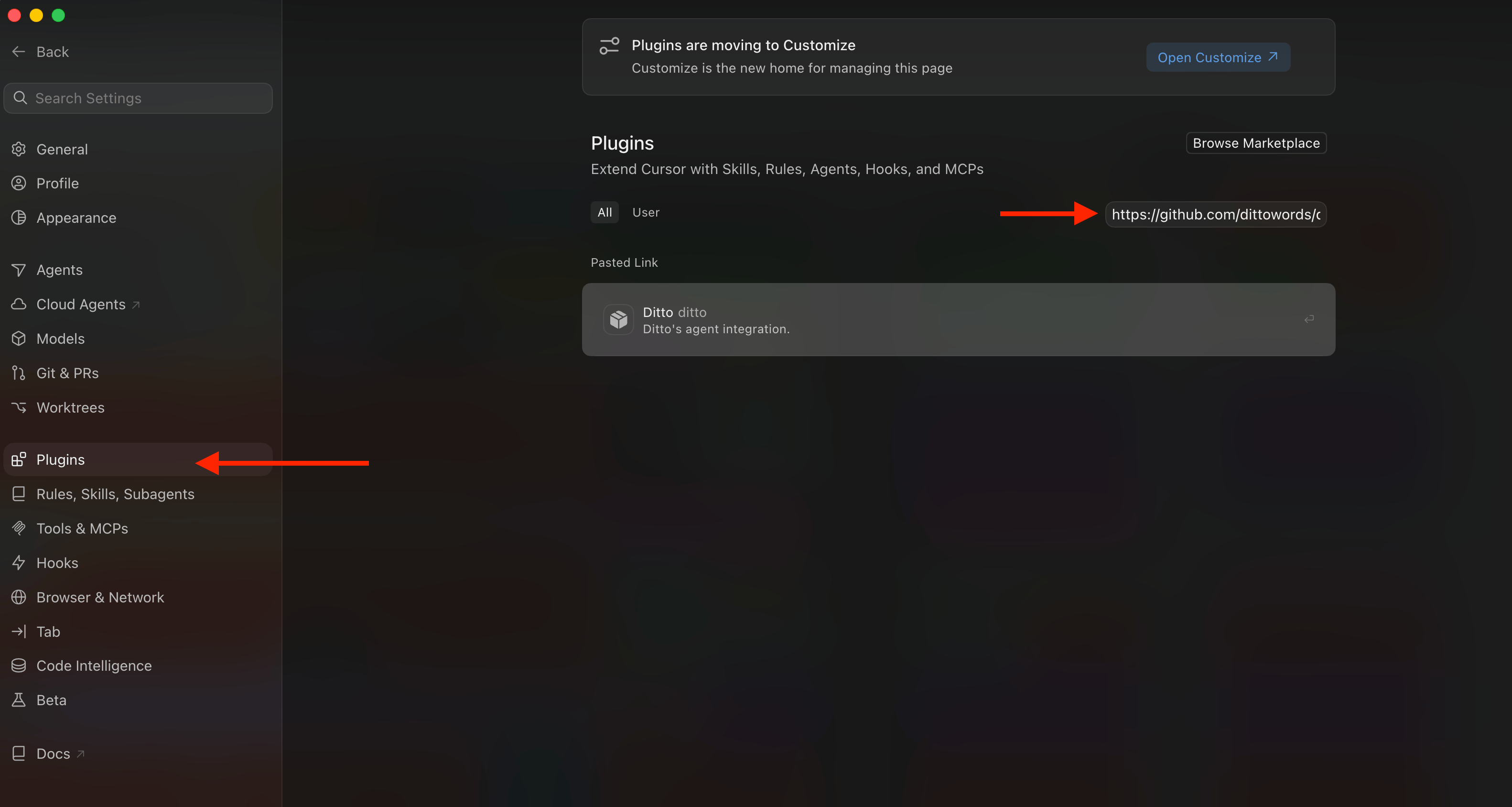
- Open Cursor Settings and go to Plugins.
- Paste
https://github.com/dittowords/ditto-agent-setupinto the Search or Paste Link field. - Click Ditto, then Add to Cursor.
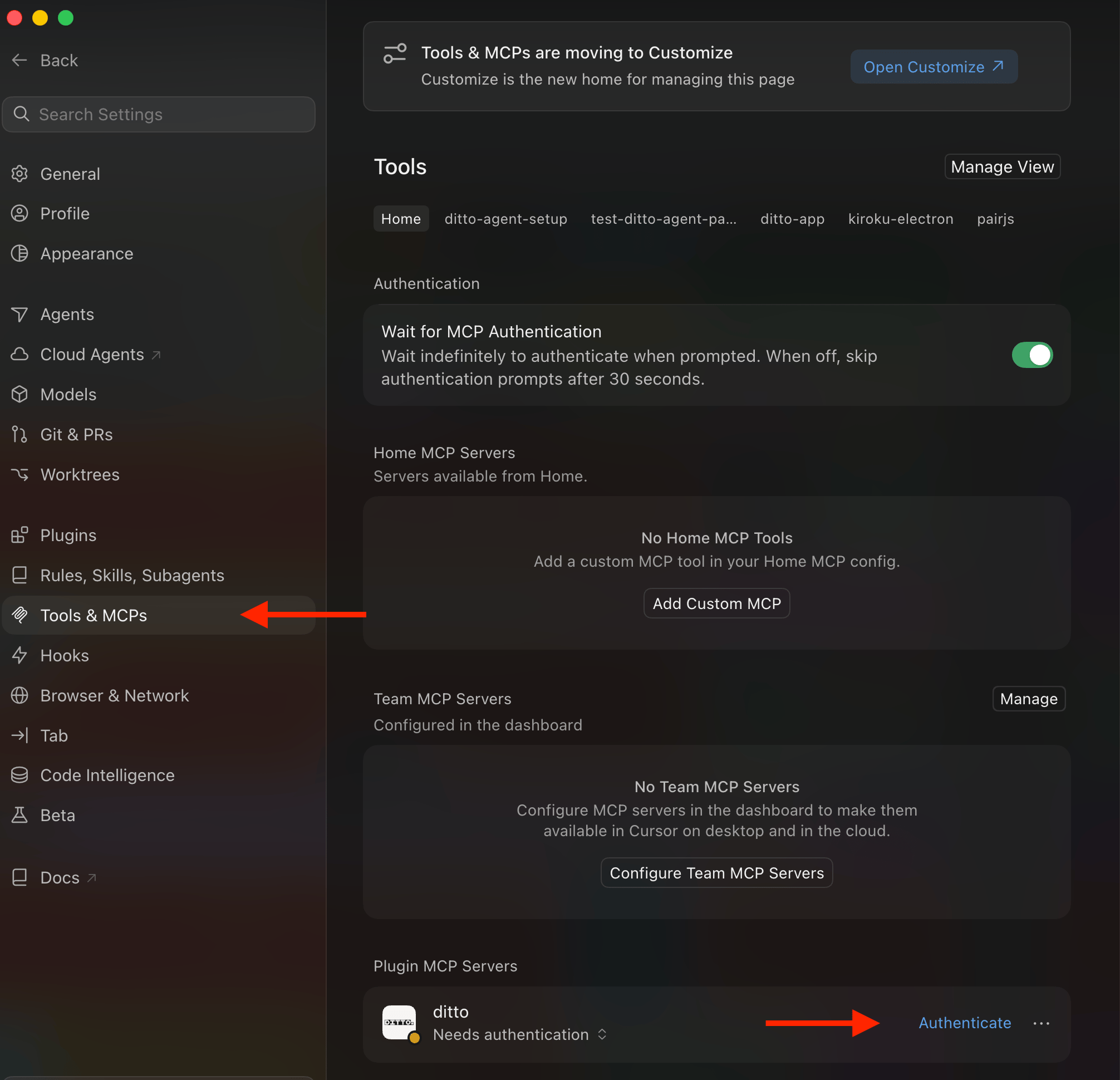
- Go to Tools & MCPs and log in to the ditto server. A browser tab opens for you to log in to Ditto and approve access. A green status indicator means you are connected.
- Start a new Cursor session. Tools from a newly added server only load in sessions started after the install, so a “tools unavailable” message in the current session is expected.
Screenshots of the Cursor steps
Screenshots of the Cursor steps
Add the MCP server directly
Use this when you only want the MCP server, or for a client the plugin does not support. Afterwards, add the instruction block from Agent instructions so the agent knows when to use the tools.- Claude Code
- Cursor
- VS Code
- Windsurf
- Codex
- Figma Make
- Other clients
Pick a scope:Project scope creates this Then restart Claude Code, run
.mcp.json, which holds no credentials and is safe to commit:/mcp, select ditto, and choose Authenticate. Each team member logs in with their own Ditto account the first time. Claude Code also asks for approval the first time a project-scoped server is used.Verify the connection
Ask the agent:get_styleguide_rules and returns your rules, or says the workspace has none yet. From a terminal, claude mcp list (Claude Code) or codex mcp list (Codex) shows the server’s status; Needs authentication means the login step has not been completed.
API key for CI and headless clients
Logging in with your Ditto account is the recommended way to connect. An API key is for the cases where no browser login is possible: a CI pipeline, an agent running unattended on a server, machine-to-machine access, or a client whose OAuth is broken (Codex, while its bug is open). With a key, the agent acts as the user who created it rather than as the person running it, and Ditto’s activity history attributes its actions accordingly.Configure an API key
Configure an API key
1
Create an API key (a workspace admin does this once)
The steps are in API authentication.
2
Pass it as an Authorization header
The header value is For project scope, reference the environment variable so the committed file stays free of secrets:Equivalent Each team member then sets
token <your-api-key>. If the same pipeline also runs the CLI, keep the key in the DITTO_TOKEN environment variable, which the CLI and the Ditto Specs CLI read.- Claude Code
- Cursor, VS Code, Windsurf
- Codex
- Figma Make
- mcp-remote
.mcp.json:DITTO_TOKEN to their own API key.Scope results to your codebase
Add aditto/config.yml (or ditto/config.yaml) file at the repo root listing the Ditto projects this codebase owns:
pull (see Scope results to your codebase). Find a project’s developer ID under the project’s Development integration menu in the web app, or ask the agent to call list_projects.
Make it stick
Commit:.mcp.json(Claude Code project scope) or.cursor/mcp.json/.vscode/mcp.json, with no literal keys in them.ditto/config.ymlwith your project IDs.- The instruction block from Agent instructions in
CLAUDE.mdorAGENTS.md. If you installed the plugin, the same instructions load automatically at session start; committing the block as well means every agent, plugin or not, behaves the same way. DITTO_TOKENas a secret in CI, only if pipelines run agents or the CLI without a browser.
Optional: Ditto Specs
Ditto Specs are*.ditto.md files that sit next to your design system components and declare their text surfaces, with matching style guide rules synced from Ditto. With the plugin installed, run /ditto-spec-setup; the agent installs the Specs CLI if it is missing, creates dittospec.config.json and workspace.ditto.md, and scaffolds component spec files.
Frequently asked questions
Is this the same as the documentation MCP server? No.https://api.dittowords.com/v2/mcp is the Ditto MCP server described on this page; it connects an agent to your workspace. https://developer.dittowords.com/mcp is this documentation site’s own server for searching the docs.
Which tools will the agent use? It depends on the task. Writing UI copy uses get_styleguide_rules, search_ditto_text, and suggest_edit; importing a prototype or a codebase uses create_ditto_project, create_text_items, and the library tools; localization uses the variant and variable tools. Every tool is defined on the Tools page.
Troubleshooting
Needs authenticationinclaude mcp list: run/mcp, select the server, choose Authenticate, and complete the browser login.- The tools are not in the tool list: restart the session. Newly added servers only load in sessions started after the change.
Unauthorizedwith an API key (CI only): the header must readAuthorization: token <your-api-key>, and the key must come from a workspace with developer integrations enabled.- Results include the wrong projects: check
ditto/config.ymlat the repo root.